








iSanKeys RP800 (SK-R420) Slow Motion Replay Controller
The iSankeys RP800 (SK-R420) slow-motion replay control panel, designed with the classic layout of the industry, can support the switching control of up to 8 camera signals. It perfectly matches the latest features of vMix Replay and offers a professional-grade solution for seamless replay and slow-motion control in live sports events and broadcast productions.
€ 1.179,00
3 in stock (can be backordered)
- Ordered before 4PM same day shipping
- FREE shipping within EU
- Pricing Ex VAT

iSanKeys RP800 (SK-R420) Slow Motion Replay Controller
The iSankeys RP800 represents a thoroughly upgraded slow-motion replay control panel. It comes with an even smoother jog & shuttle control knob and an increased number of camera control buttons. Specifically, the RP800 Sports Instant Replay Controller is meticulously designed for 8-camera vMix Replay Control, offering a professional-grade solution for seamless replay and slow-motion control in live sports events and broadcast productions.
The RP800 replay controller is crafted with the classic layout of the broadcasting industry, with the intention of fully exploiting the diverse functions of vMix instant replay. Once connected to the vMix computer host via a USB cable, users can transform it into a simple and readily usable solution by loading pre-made shortcut key configuration files. Moreover, it can swiftly create groups and play back numerous wonderful replay clips through operations on events. Additionally, it also supports shortcut operations for secondary editing and modification of the marking time.
KEY FEATURES
- 8 Camera Slow-motion Control
- Plug and Play with vMix Instant Replay
- Classic Layout of the Broadcasting Industry
- Industry standard jog & shuttle control for setting in and out points
- Smooth Action T-bar for Live playback speed control
- USB communication and power supply
- All-metal body
SPECIFICATIONS
| Products Name | RP800 Slow Motion Replay Controller |
|---|---|
| Model Number | RP800 (SK420) |
| Brand Name | iSanKeys |
| Number of Keys | 42 Single Keys |
| I/O | USB Type-A, DB-9 RS232, LAN |
| Protocols | USB, MIDI, RS232 |
| Work With | vMix Replay, FairReplay, Central Control |
| Input Voltage | USB 5V 300mA |
| Power Source | USB Port, Nominal Voltage = 5V DC |
| Weight | 3000g |
| Dimensions | 330×320×170mm |
| Material | Aluminum vs. Steel Gantry CNC Construction |
INCLUDED BY DEFAULT
- iSanKeys RP800 Replay Controller
| Brand | iSanKeys |
|---|---|
| MPN | |
| SKU | SA-RP800 |
| EAN | 0721688716501 |
Installation Steps
iSanKeys Install template in vMix
For the products of SK-R290/SK-R420/SK-P640/SK-P350, you need to install different templates in vMix system.
Because we designed our panels in “Shortcut” and “Activators” to control the buttons and backlight respectively in vMix system.
Need you to install the panels of profile file in the vMix system. For the different models of products, you need to install corresponds files.
Notice: the file “SK-P640 Control Panel” is a universal version, can be adapted to model SK-P350/SK-P640M.
Installation Steps:
1. First, go to: https://www.isankeys.com/vmix-templates-download/ and download the files related to your model.
2. Second, unzip the file you downloaded in your computer.
3. Using a USB cable we provided to connect the panel with vMix system.
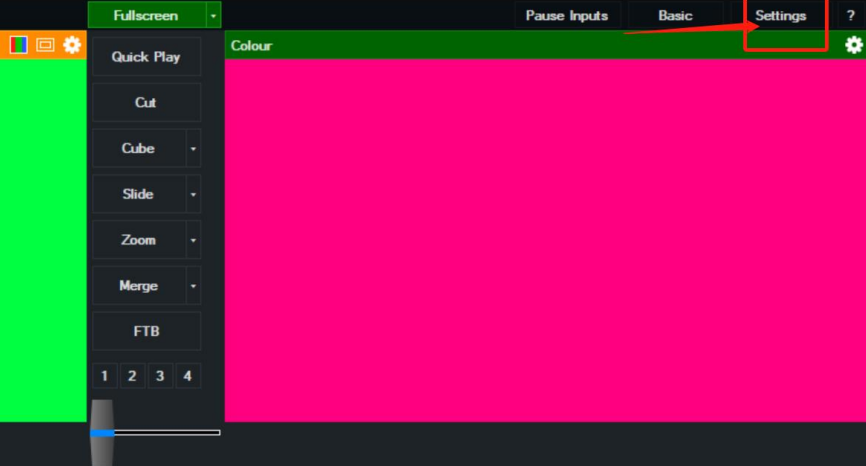
4. Third, open the vMix system. Click“Setting”in the top right corner.
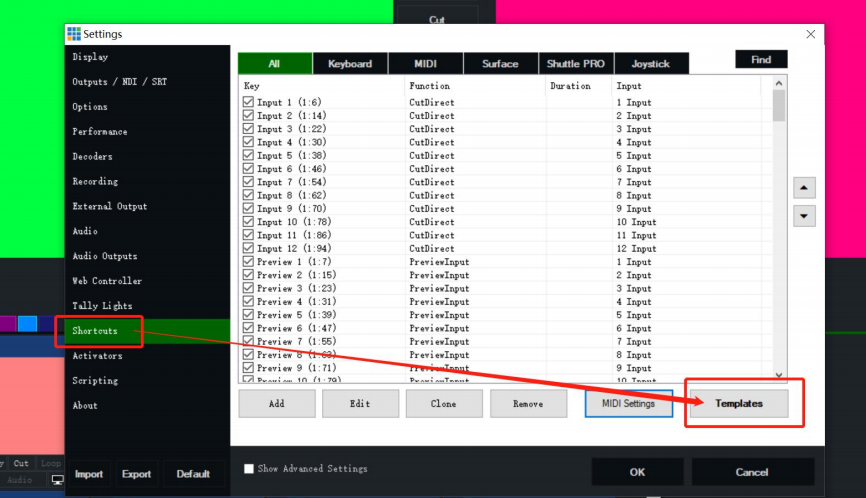
5. In the popup dialog, click “Shortcuts”in the left of the menu. This step is to control the buttons of panel.
Of course, the vMix system also can control the panel either. Because this is MIDI protocol.
(1)Click “Template” in the right bottom corner to enter next page.
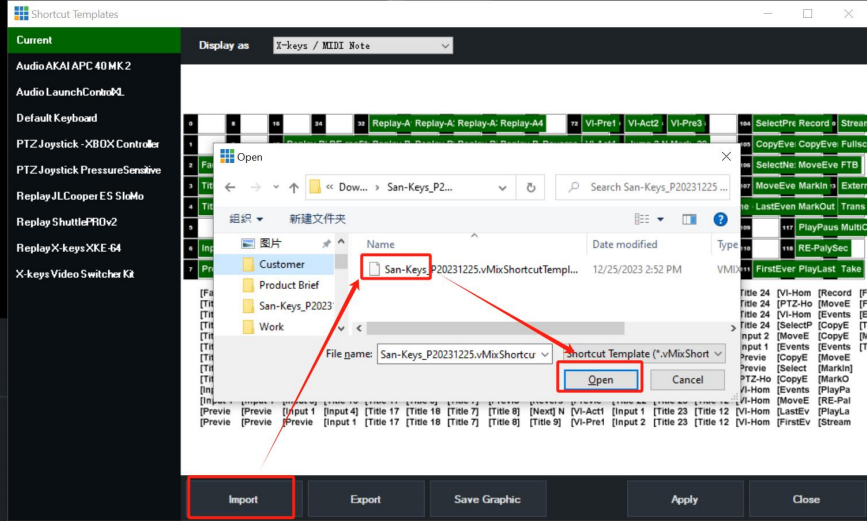
(2)Then click “Import”in the left bottom corner, select the file you just extracted before in the popup menu.
(3)Click “Apply” in the bottom menu.
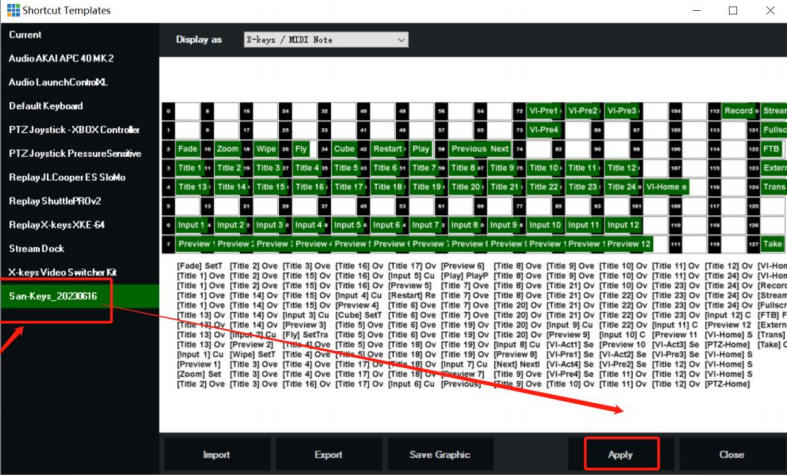
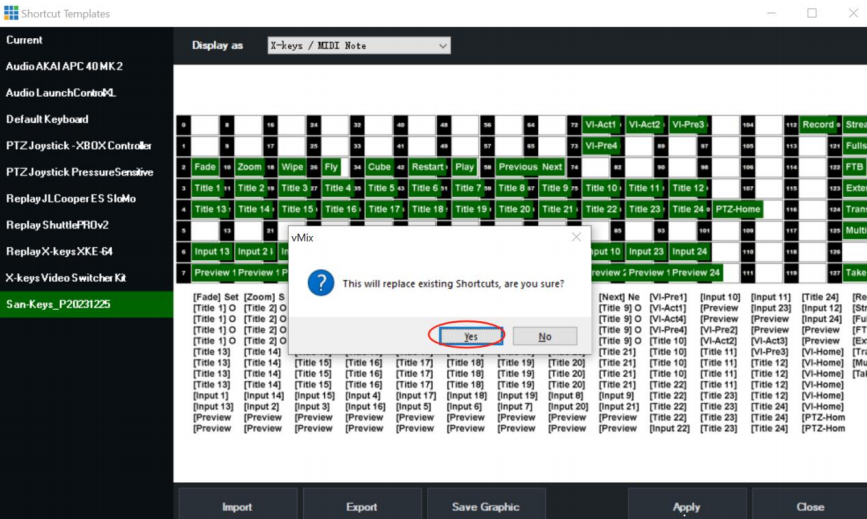
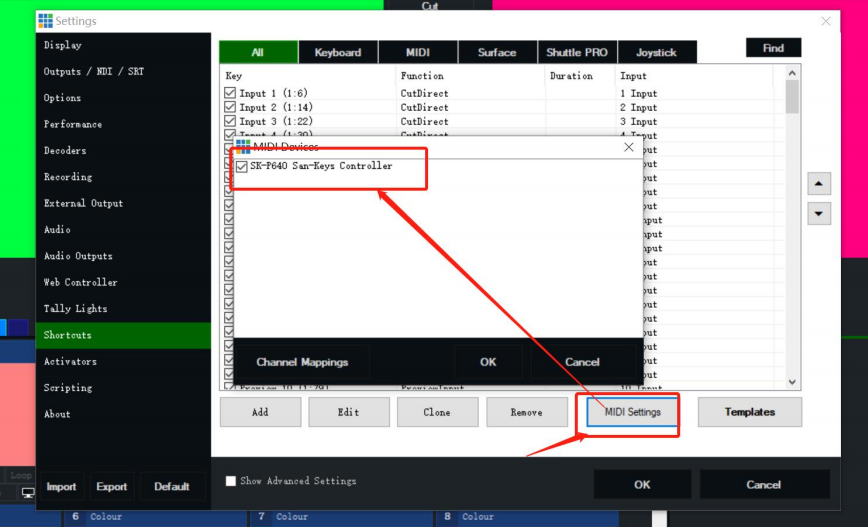
(4)After last step, the menu will return to the previous menu automatically.
Click “MIDI Settings”in the bottom menu, select the correspond model of product, click “OK” in the popup menu.
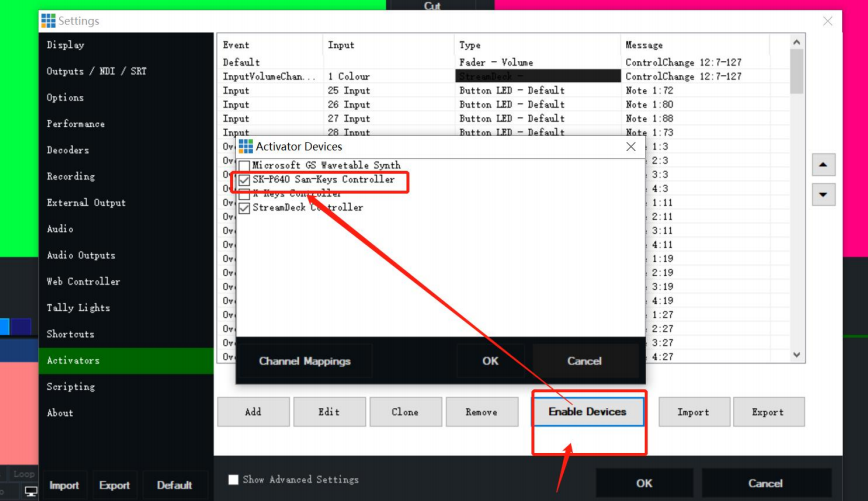
(6). Click “Activators”in the left of the menu. This step is to control the backlight of each buttons.
When you press any buttons there will have backlight to indicate which buttons you pressed.
(1)Click “Import”in the right bottom corner.
(2)Find and click the file you just extracted to import in system.
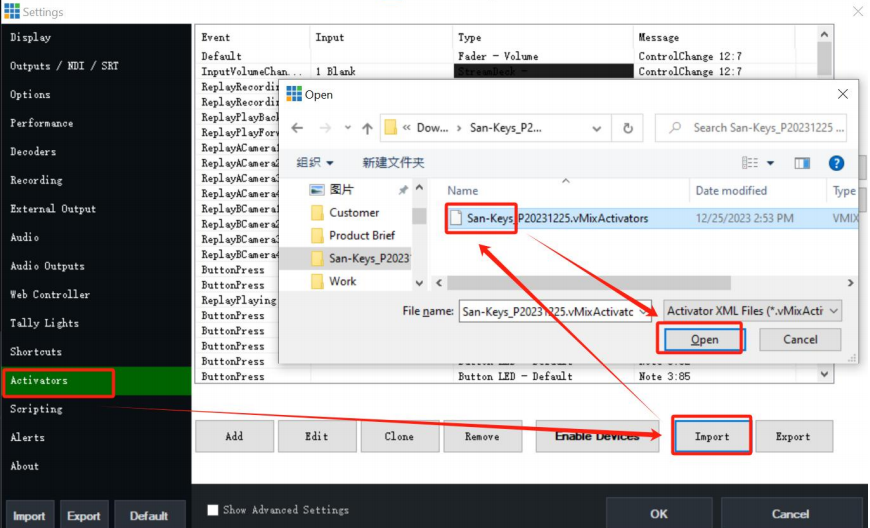
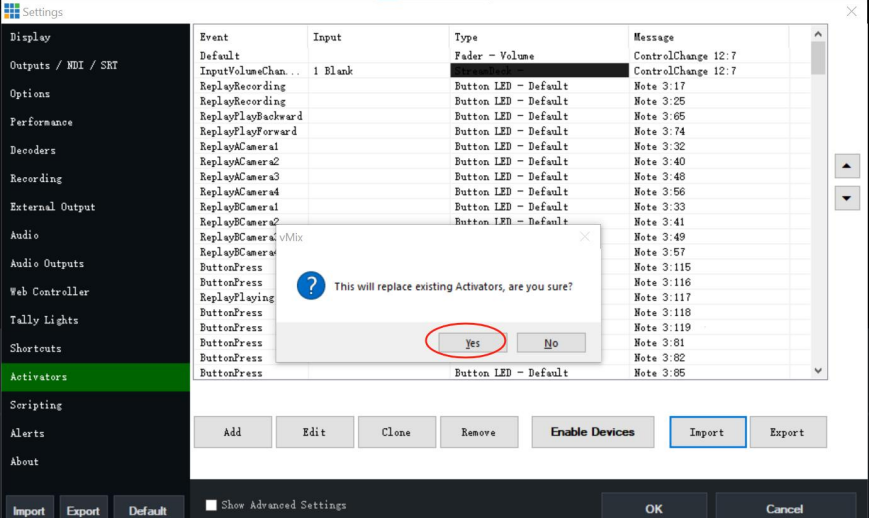
(3)Click “Enable Devices”, choose the model of product in the popup menu, then click “OK”.
7. All finished, click “OK” in the bottom of the menu.
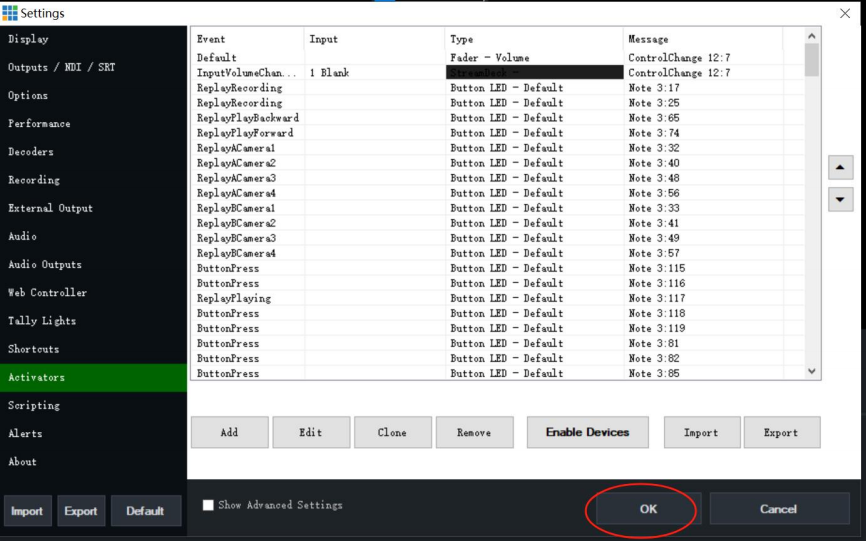
That’ s all the installation steps!